This guide shows how to do the common things on the site: check information, manage your team, set lines, trade, make offers, and solve common problems.
Next SimCheck the schedule, injuries, and roster, then save your lines.
Free AgencyFind a player, make an offer, and watch for replies.
TradesBuild trade offers, review incoming ones, and follow the result.
RequestsUse My Team for ticket changes, position changes, releases, and claims.
Section
Start Here
The basics a GM needs before using the task areas of the site.
1.1Your First SessionLog in, learn the menus, and see where alerts show up.#
Use My CEHL to log in. Once signed in, the top menu becomes your team area with My Team, Trade Center, My Offers, and Line Editor.
Alert badges in My CEHL point to trades, free-agent offers, extensions, and player claims that need attention.
Desktop navigation uses the top menus and dropdowns. Mobile navigation uses the menu button and stacked menus.
League pages are available before login, so you can check the rules, scores, standings, rosters, free agents, and this guide first.
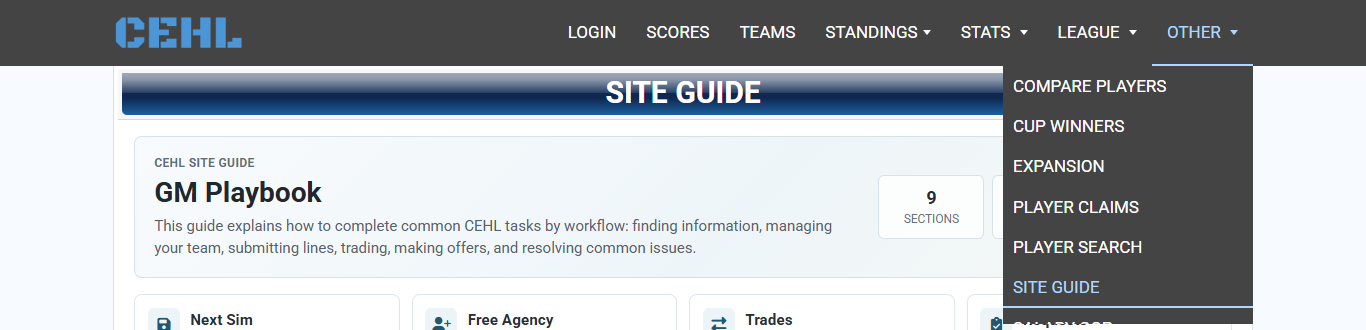
My CEHL, League, and Other are all available from the top navigation.
1.2Finding Team and League InformationUse the league pages to check the basics before you make a move.#
Use Scores, Standings, Schedule, Team Rosters, Stats, Contracts, Transactions, Waivers, Draft pages, and Free Agents to get a quick read on the league.
Use Player Search when you know the player name but do not know where to find them.
Use Rules and Salary Cop before transactions, claims, or free-agent decisions that could affect the rules.
Where Things AreUse this when you know what you want but not where to click.
Daily Check
Scores, Schedule, Standings, Farm Standings, Overall Standings, Career Standings, Team Rosters, Injury and Susp, Transactions.
Player Search
Stats, Skaters, Goalies, Individual, Leaders, Farm Leaders, Team Stats, Career Leaders, Player Search, Compare Players, Unassigned.
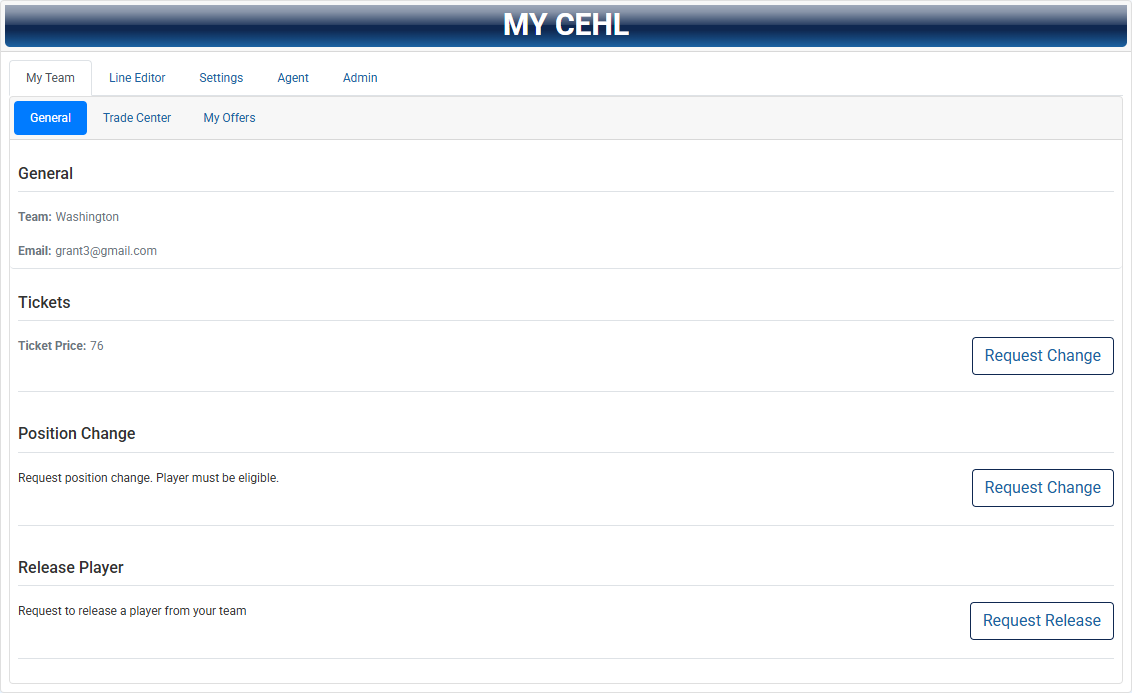
Open My CEHL > My Team after login. Use this area to check your team and get to the request screens.
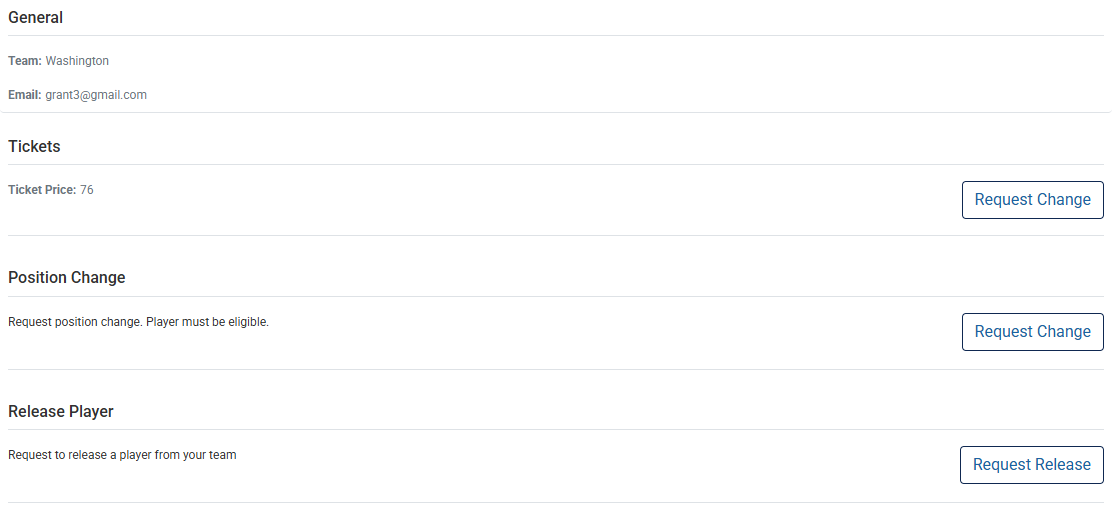
The General tab contains ticket changes, position changes, player releases, and player claims when those options are open.
Check the related rules first, because some actions are only available at certain times or for certain players.
After you send a request, the page should show a confirmation, a pending note, or a message telling you what to fix.
MyCEHL tabs route you to team, trade, offer, line, agent, or admin areas.
3.2General RequestsTicket, position, release, and claim requests start here.#
Ticket price requests are used when you want the arena ticket price changed.
Position change requests should match the rules and the way the player is being used.
Player release requests start the release process when the player can be released under the rules.
Player claim entry points are used when a claim is open and the player can be claimed.
General request controls are grouped around team-level actions and status messages.
Section
Line Editor
Use the roster and lines screens to set your team before the next sim.
4.1Roster EditorMove players between pro, scratches, and farm before you set your lines.#
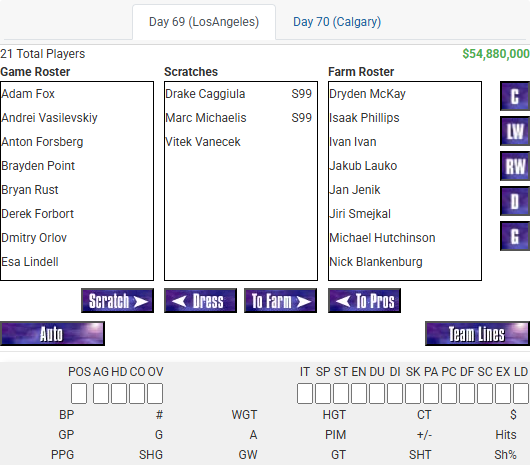
Open My CEHL > Line Editor, then switch to the Team Roster view. Use this screen to make roster moves before you set the lines.
Move players between Pro, Scratches, and Farm until the roster looks right for the next sim. Holdouts show up as scratches here.
Save Lines still matters here: roster changes do not count until you save, even if you did not change the lines themselves.
The site does not change right away. The commissioner has to upload the saved files before the changes appear.
Position changes from My Team take effect right away and will show the next time the editor loads.
When new files are uploaded, the editor refreshes to match the latest uploaded version.
Use Team Roster to manage pro, scratch, and farm placement before saving.
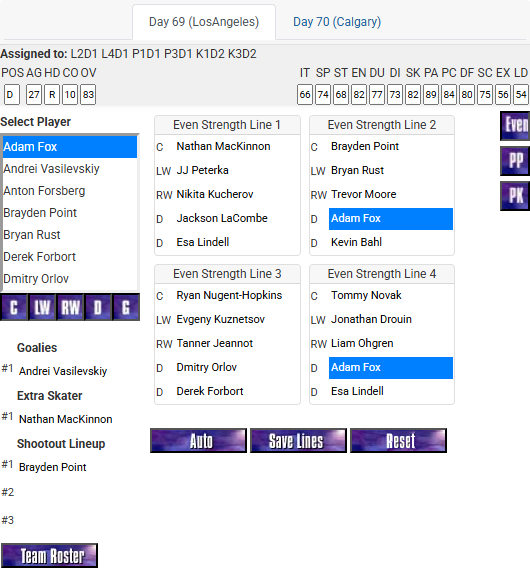
4.2Line EditorSet your lines, extras, goalies, and special teams, then save.#
Return to the Team Lines view after the roster is set. This is where you set the lineup the commissioner will post next.
Check line assignments, extras, scratches, goalie usage, and special teams before you submit.
Saving matters: unsaved changes do not count yet.
If a player is missing, check the roster move, injury status, waiver status, holdout status, or page filter.
After a trade, claim, signing, or injury, review both screens so the next save matches your team.
When new files are uploaded, the editor reloads to the latest site version.
Save Lines is the final step that finishes both roster and line changes.
Section
Trade Center
Handle trades from start to finish in one place.
5.1How Trades WorkUse the badges to see which trades need attention.#
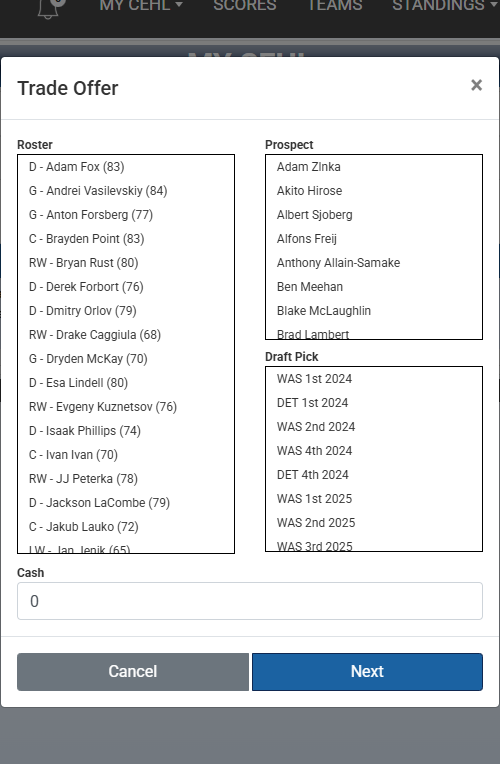
Use Propose New Trade to build an outgoing offer with players, picks, and a note for the other GM.
Use Incoming Requests to accept or reject trades sent to your team.
Outgoing trades can usually be reviewed or cancelled while they are still waiting.
Completed and rejected history gives you a record after the trade is finished.
Notification badges point to trade requests that need your response.
Use the trade window to review assets, notes, and next steps.
Section
Free Agency Walkthrough
From finding a player to posting, updating, or pulling back an offer.
6.1Research the MarketFind a player and check the market before you offer.#
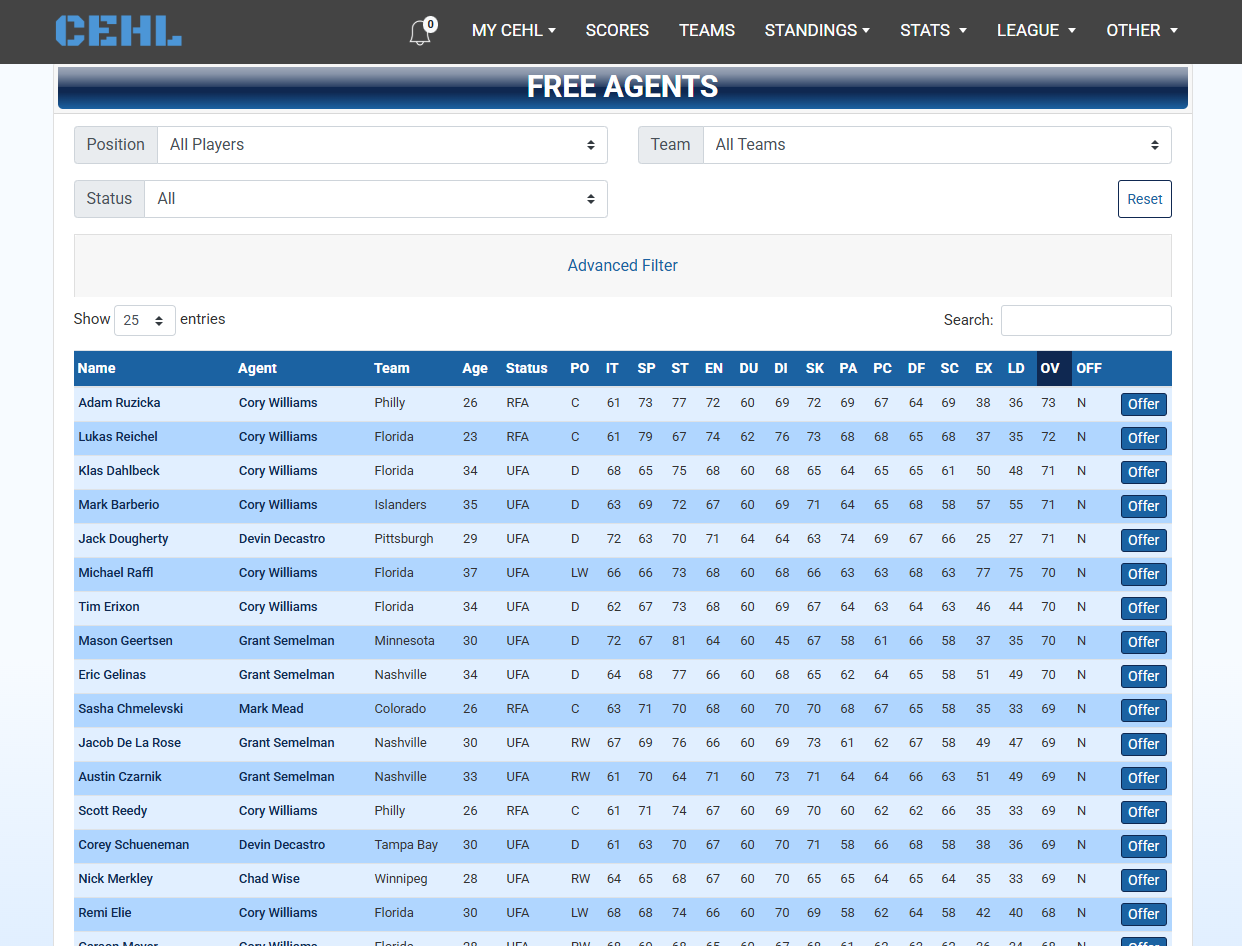
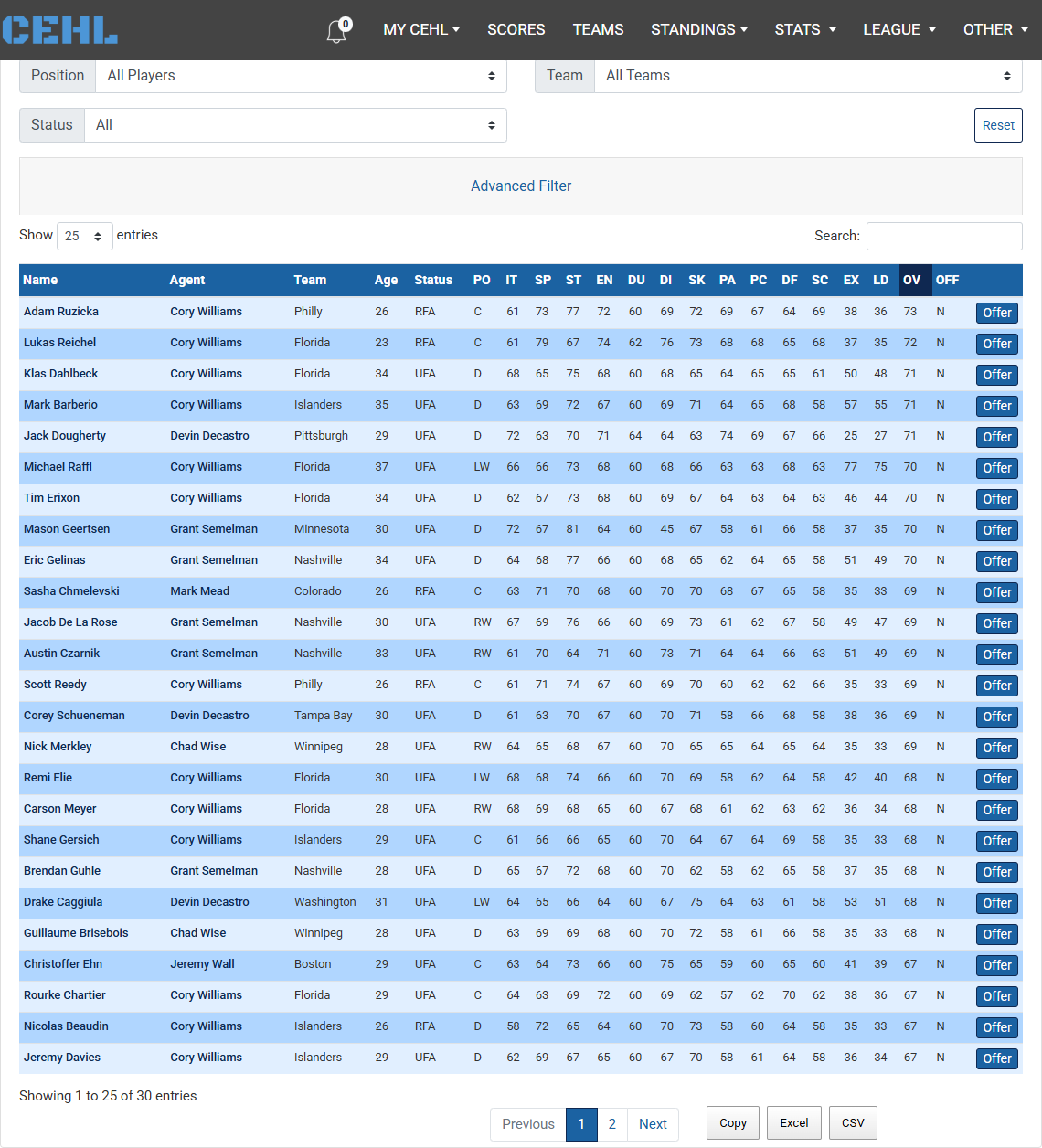
Open Free Agents to filter by position, team, UFA/RFA status, rating, age, and other details.
Use the table to compare player age, current team, agent, ratings, and the OFF tag before you decide.
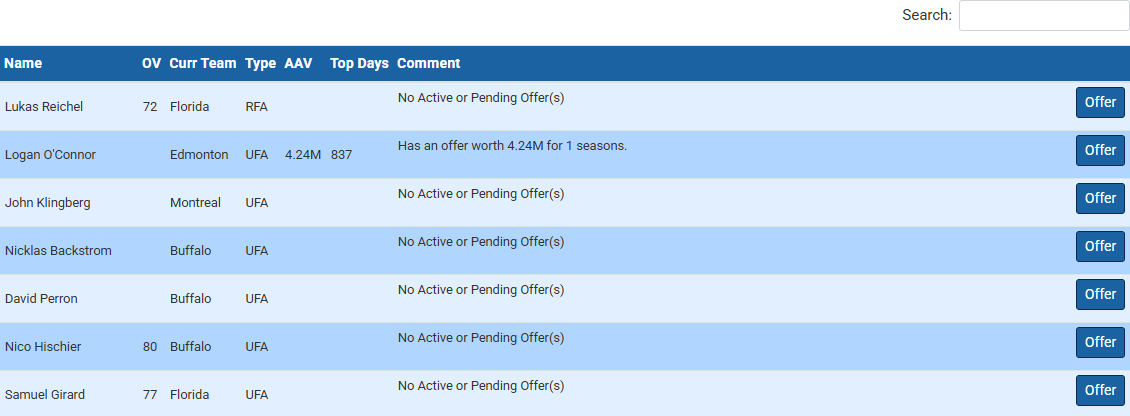
Open Free Agent Offers to see active offers, recent offers, top AAV, top days, comments, and signed players.
Use player details, contracts, stats, rules, and Salary Cop before you choose years, salary, signing bonus, and whether the player fits your team.
Free Agents is the starting point for finding available players before you open an offer.
6.2Read Free Agent OffersSee what other teams have already offered.#
Active Offers shows the leading offer, AAV (average yearly value), top days, comments, pending activity, and rejected offer counts.
Signed Players keeps the finished market visible after decisions are made.
Use this page before you change an offer so you can see whether a player already has a leader, other offers waiting, or recent movement.
Use this page to see how busy the market is before you change an offer.
6.3Submit or Update an OfferUse the offer window to set the contract details and send it.#
Open the player offer action from the Free Agents page when offers are open.
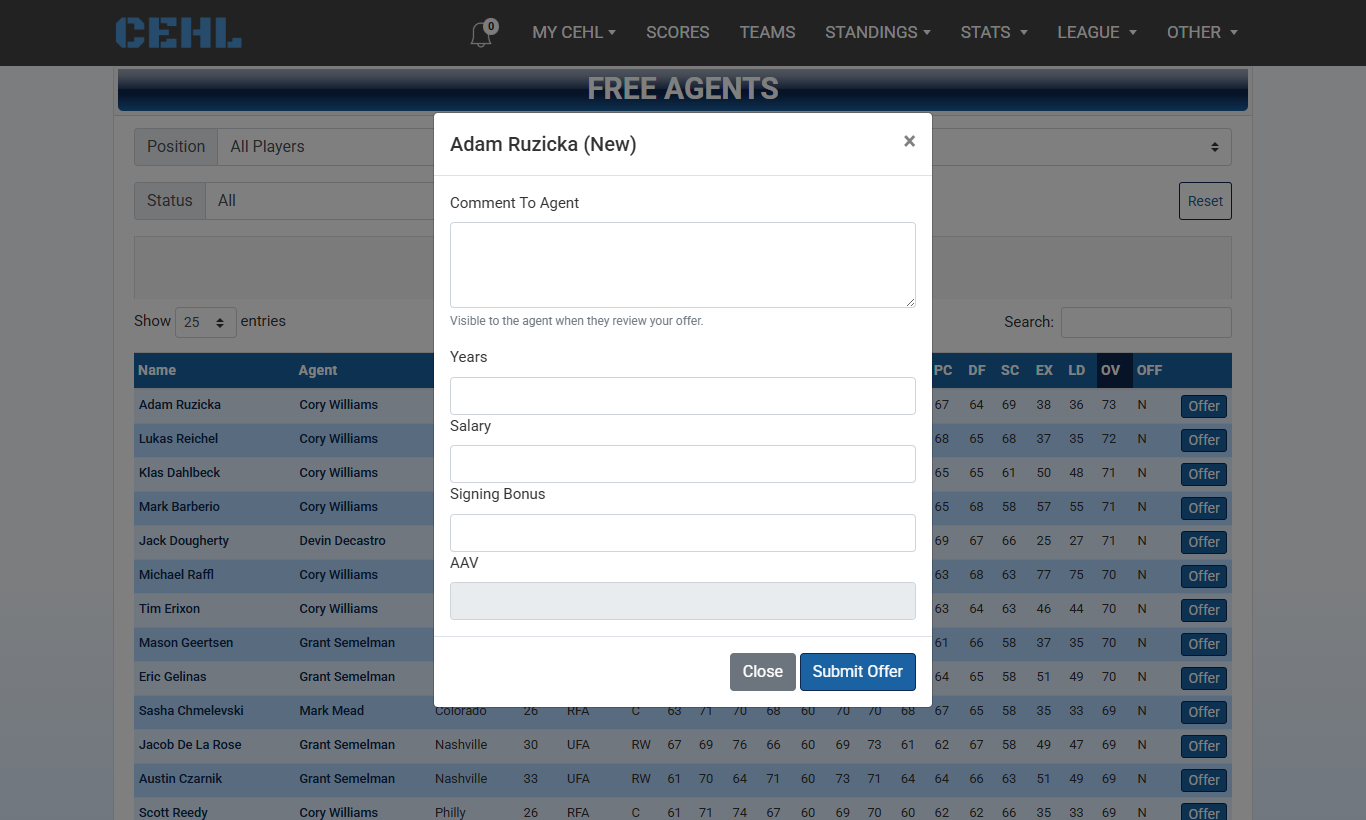
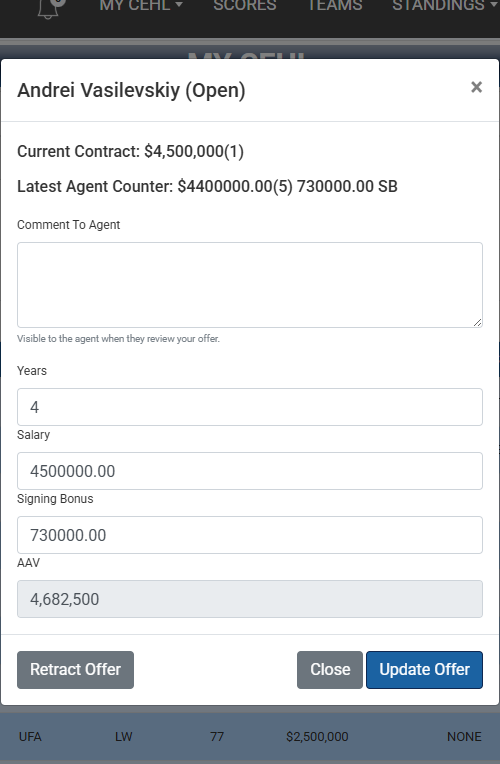
Enter years, annual salary, signing bonus, and an optional comment if it helps explain your offer.
Review the average yearly value (AAV) before you send it. Signing bonus affects AAV even though it is not the same as annual salary.
Send the offer and make sure it shows up in Free Agent Offers or your My Offers view.
Go back to the same player if you need to update, retract, or re-offer it when the site allows it.
The offer window keeps the terms, note, AAV, and actions together.
6.4Track My Free Agent OffersSee your own offers and what happens to them.#
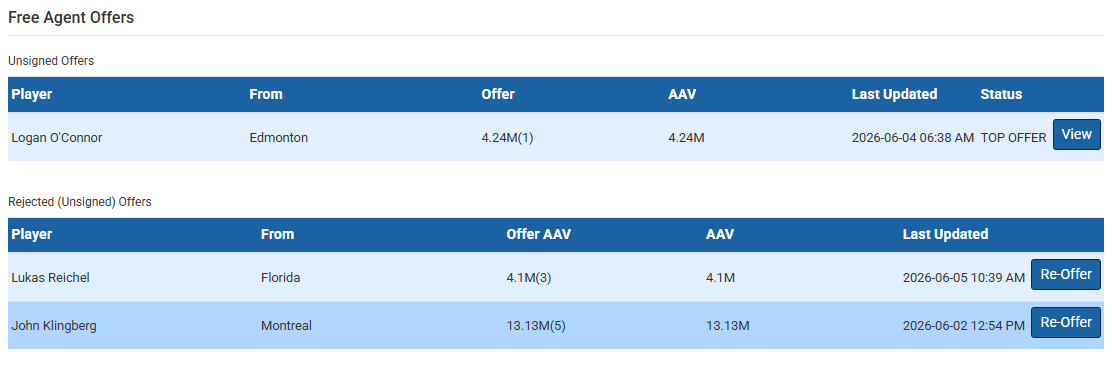
Open My CEHL > My Offers > Free Agent Offers to track your submitted, rejected, accepted, pending, signed, retracted, or countered offers.
Badges and row labels show when you need to do something next.
Use the actions shown for that row, such as submit, update, retract, re-offer, revise, or view.
Track your offer progress here after you send or change a bid.
Section
Contract Extensions
Work on next-year deals before a player reaches free agency.
7.1Extension CandidatesStart here when you want to extend a player.#
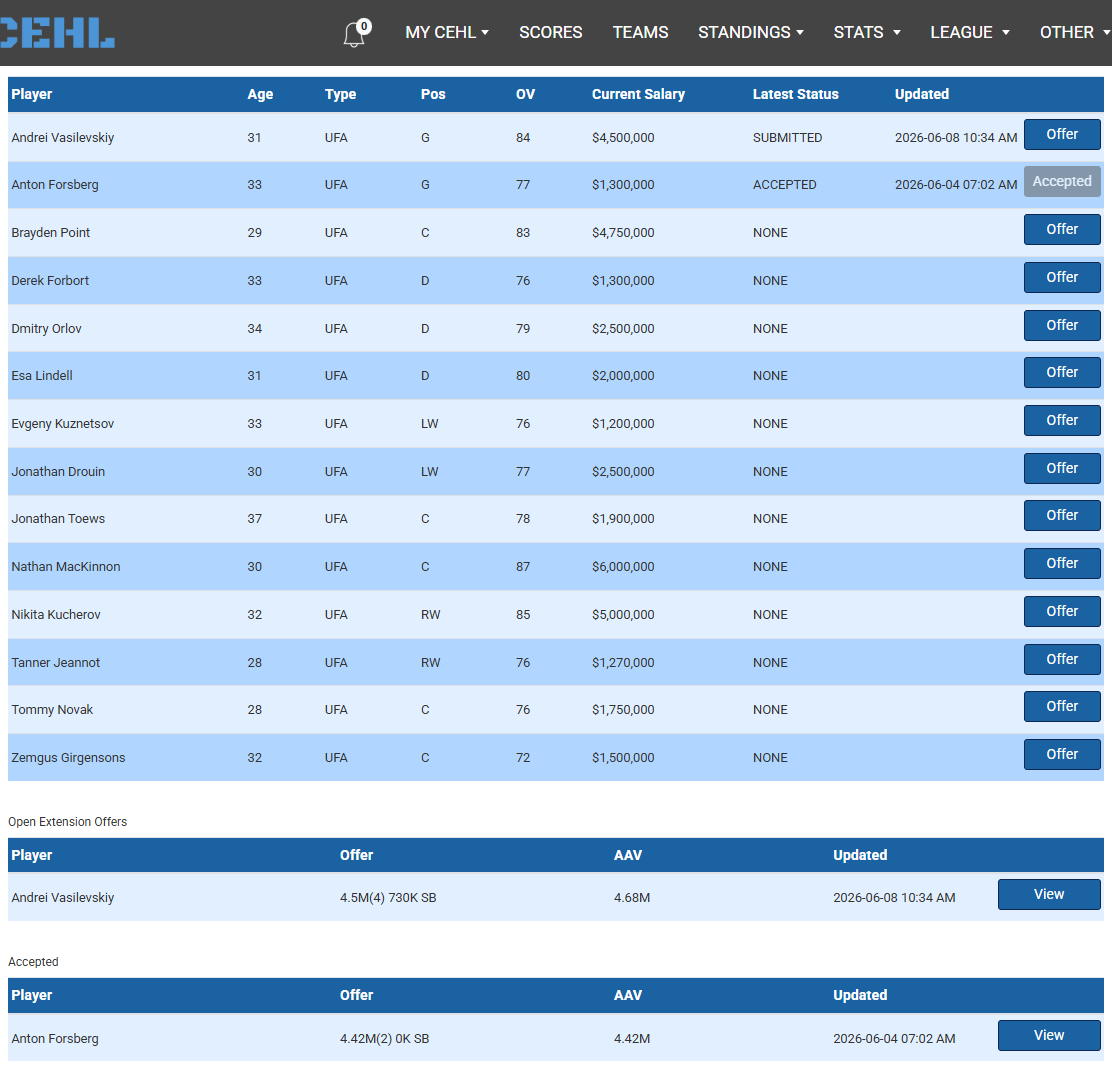
Open My CEHL > My Offers > Extensions when extensions are open. Extension offers are for next year, so check the current deal, player age, rules, and guide before you choose terms.
Start from Extension Candidates and open the offer button for the player you want to extend.
Send years, salary, signing bonus, and a short note if it helps explain your offer.
Track Open Extension Offers, Countered By Agent, Accepted, and Rejected rows.
Use View, Revise, or Re-Offer when those choices are shown.
If the agent sends back a counter, compare it with your offer and decide whether to change it, send it again, or leave it alone.
Extension candidates are where you start a new extension.
7.2Extension Offer ModalUse the offer window to check the current deal and send updated terms.#
The window shows the current contract, your offer, and any counter when those are there.
Years, salary, signing bonus, comment, and AAV are checked before you send, update, retract, revise, or re-offer.
If buttons are missing, the window may be closed, the player may not be eligible, or the offer may already be finished.
The extension window keeps the current deal, counter, and updated terms together.
Section
Player Claims
Use either the draft board or the standard claim form, depending on the league mode.
8.1Claim OptionsThe Player Claim page looks different depending on the mode.#
Open My CEHL > My Offers > Player Claim. The page changes with the current league mode.
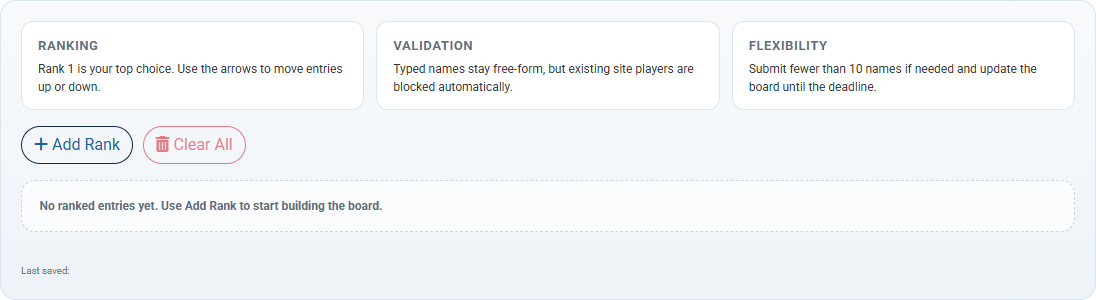
Midseason claim draft mode: submit up to 10 ranked names on the draft board. The draft is blind, runs for 5 rounds, and uses a snake order based on the reverse standings at the time of the draft.
Draft board controls: add rank slots, enter player names, save the list, read any messages, and update it until the deadline.
Standard claim mode: after the draft period, use the claim screen to submit an eligible player on a first come first serve basis, with tie break handling when multiple teams reach the same player window.
8.2Claim Draft BoardRank players for the midseason blind draft.#
Use Add Rank to add more slots, up to 10 names.
The site checks names and warns you if a name cannot be used.
Save the list before the deadline. The league resolves the 5-round blind draft in a reverse-standings snake order, so put your best target first.
Rank your targets and save the list before the deadline.
8.3Standard ClaimsUse this when the league is not using the draft board.#
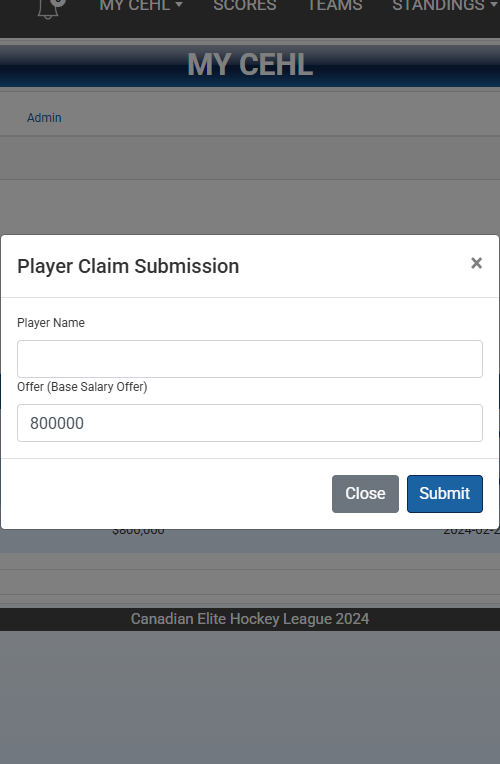
When the draft board is not active, the Player Claim page switches to the standard claim form. This is the everyday claim mode after the draft window has passed.
Use the claim form to request a player you can claim.
Standard claims are handled on a first come first serve basis. If multiple teams hit the same player at once, the league uses its tie break rules to sort it out.
Use the claim table to follow submitted, cancelled, confirmed, rejected, or completed claims.
Cancel only while the option is still there. Once the claim is locked or already finished, the cancel action may disappear.
Check the player, your roster, and the timing before you submit.
Standard claim mode uses the request form and claim table instead of the draft board.
Section
Common Workflows
Quick checklists for the things GMs do most often.
9.1Quick TasksUse these when you already know the job you want to do.#
These cards focus on what you want to do and what should happen next.
Submit Lines
Make your team ready for the next sim.
Open My CEHL > Line Editor.
Adjust lines, scratches, and goalies.
Save and make sure the site says it worked.
Make a FA Offer
Send an offer for an available player.
Find the player on Free Agents.
Open the offer window.
Enter terms, check AAV, and submit.
Respond to a Counter
Handle an offer the agent sent back.
Open My CEHL > My Offers.
Find the item with the counter.
Accept, revise, or keep going if you want.
Submit a Player Claim
Claim a player when claims are open.
Check that the player can be claimed.
Open the claim screen from My Team or My Offers.
Submit and watch the status.
Request Position Change
Ask to change a player position.
Check the position-change rules.
Open My Team requests.
Send the request and read any message.
Propose a Trade
Send another GM a trade offer.
Open My CEHL > Trade Center.
Build the trade.
Submit it and watch the result.
Check Player Availability
See whether a player can be added or claimed.
Search the player by name.
Check the team, contract, waiver, and FA info.
Use Rules or Salary Cop before you act.
Section
Troubleshooting
Common reasons something does not work the way you expected.
10.1Common IssuesMost problems come from timing, access, or an old page.#
Login or session issues: sign in again from My CEHL if team pages show a login message or missing controls.
Missing buttons: make sure you are signed in, on the right team, and in the right league window for that action.
Disabled claims or extensions: check player eligibility, claim timing, extension timing, and whether that feature is open.
Stale notifications: open the related Trade Center or My Offers area and refresh after you act.
Offer validation errors: review years, salary, signing bonus, AAV, the current offer, and any note you entered.
Mobile navigation tips: use the menu button, open the parent menu first, then choose the page you want. If the menu feels tight, scroll inside it before you tap.
No guide topics matched that search. Try broader terms like lines, trade, offer, claim, or mobile.